Basic Setup
Use /discmeet setup to configure the transcription bot for your server. You need Administrator or Manage Server permission, or be the server owner.
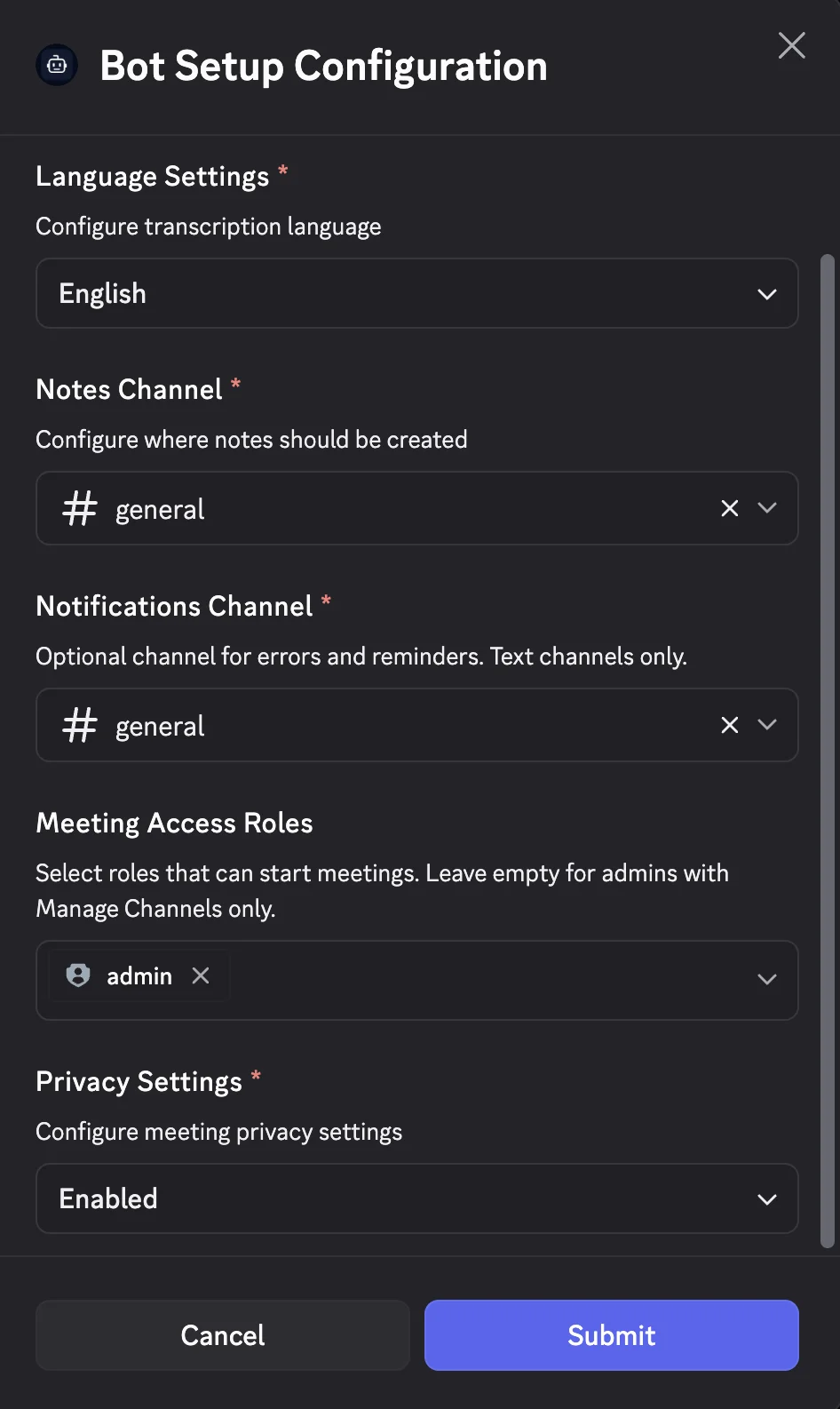
Setup modal fields
Language
Choose your preferred transcription language. The setup dropdown lists 27 curated languages (everything you’d typically run a meeting or RPG session in); the underlying Whisper model handles 100+ if you set the language via the dashboard.
- English, Spanish, French, German, Italian, Portuguese, Dutch
- Japanese, Korean, Chinese (Simplified & Traditional)
- Arabic, Russian, Serbian, Polish, Turkish, Ukrainian
- Swedish, Norwegian, Danish, Finnish, Czech, Hungarian, Greek, Latvian, Hebrew, Thai
Transcription channel (Notes channel)
Where meeting transcripts are posted. You can choose:
- Text channel — Transcripts appear as threads
- Forum channel — Transcripts appear as forum posts
The channel must support thread creation. The bot needs Send Messages and Manage Threads in this channel.
Notifications channel (optional)
Optional text channel for errors and reminders. Text channels only. If not set, notifications go to the transcription channel.
Meeting access roles
Select 0–25 roles that can start meetings. If empty, only administrators can start meetings.
Privacy
- Enabled — Meeting notes visible only to participants
- Disabled — Meeting notes visible to everyone on the channel
Channel requirements
The transcription channel must grant the bot:
- Send Messages
- Manage Threads
- View Channel
If the bot is missing permissions, you’ll see an error. Go to Server Settings → Integrations → Bots & Apps, find DiscMeet, and grant the required permissions. Or re-invite the bot from discmeet.com .
Advanced settings (browser)
To map specific voice channels to different text/forum channels, or to configure custom prompts (free on all plans), use the dashboard and select your server. Those options are no longer separate slash commands in Discord. The same browser dashboard is where you bulk import characters, bulk delete with filters, and assign player characters at scale for RPG. See Getting started § Billing and browser settings for an overview.
Under Settings for your server you can also:
- Use Transcription vocabulary to list comma-separated names and terms so regular meetings transcribe unusual words more reliably—add as many as you need. DiscMeet’s smart, advanced transcription fixes close mishearings of these names, and suggests recurring names it did not recognise so you can add them in one tap. This applies to standard meetings, not RPG sessions (those use your campaign roster in the browser).
- Turn MP3 recording on or off. When it is off (the default), DiscMeet still transcribes meetings; it simply does not build a merged MP3 file or send
audio.readywebhooks for new sessions.
Tip
Speak for at least 1 minute to get the best transcription results.