MCP (Model Context Protocol)
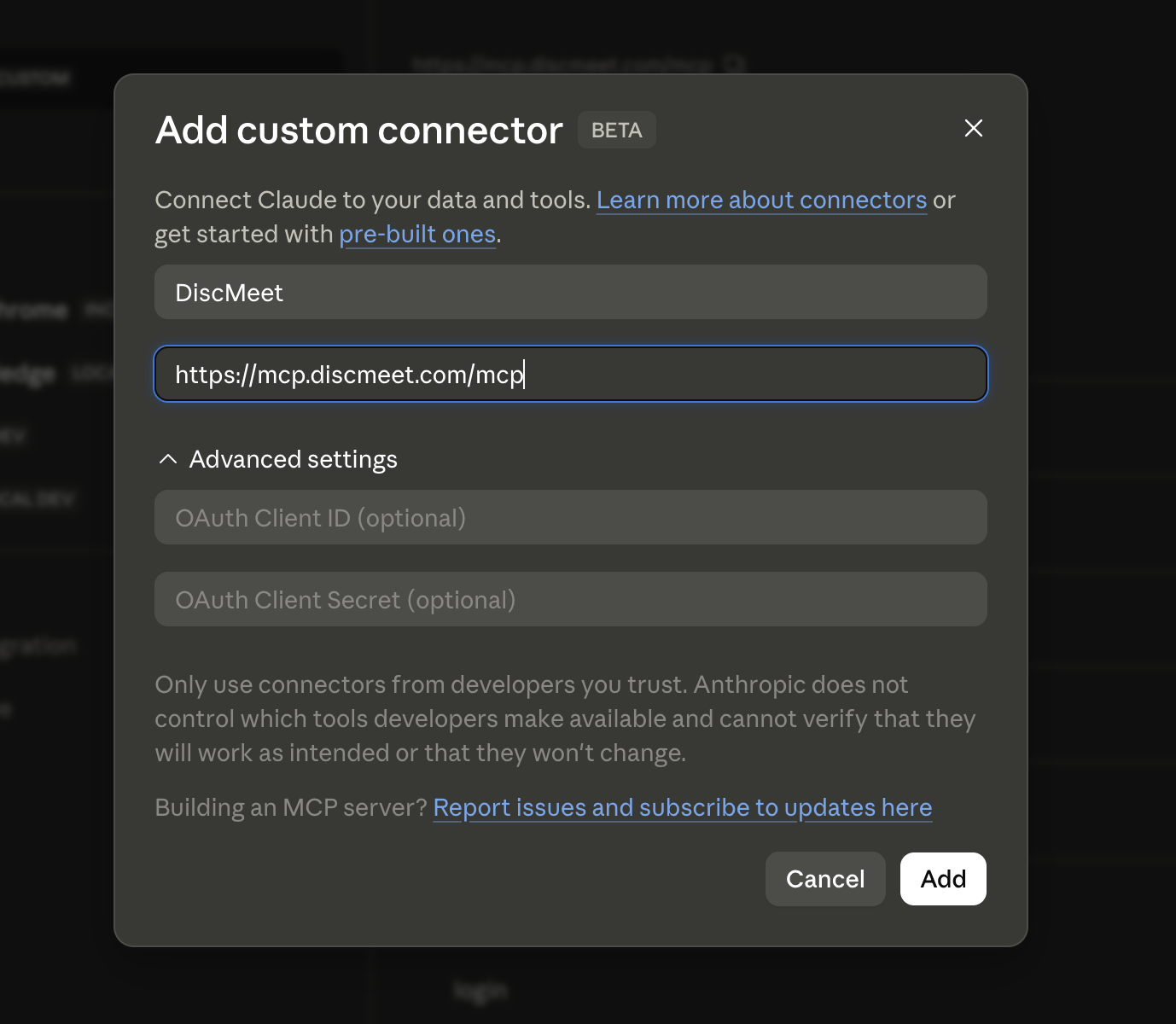
DiscMeet runs a remote MCP server at https://mcp.discmeet.com/mcp. Any MCP-compatible AI client — ChatGPT, Claude Desktop, Claude Code, Cursor, Codex, and others — can connect to it and pull your meeting notes into the conversation as live context, on demand.
This is the easiest way to ask an AI agent things like:
- “What did we decide in yesterday’s standup?”
- “Find the meeting where we talked about the new pricing - quote the relevant section.”
- “Draft a follow-up email for the planning meeting we just had.”
- “Summarise this week’s product meetings into a Monday update.”
- “What happened in the last session of The Mystic Triad? Draft a quick recap I can read to the players.”
- “Who is Captain Marrow and what do the players know about her?”
- “List every NPC and faction in The Mystic Triad — I need a quick refresher before tonight’s session.”
- “Pull every campaign on this server and tell me which ones haven’t had a session in a month.”
…and have the agent fetch the actual notes from your server itself.
Requirements
- Your Discord server has the DiscMeet bot installed and enabled
- The server is on the Pro plan or above
- Sign in with Discord — no token to copy or rotate. ChatGPT signs you in during setup; every other client hands you a sign-in link right in the chat the first time you ask. See How sign-in works.
Connect your client
Pick your AI client below. Setup is just the endpoint URL plus a Discord sign-in — ChatGPT handles sign-in during setup; everywhere else the assistant gives you a sign-in link in the conversation.
ChatGPT
ChatGPT supports custom MCP servers through its Developer Mode for Apps. The whole setup is in the ChatGPT settings UI — no config files.
1. Enable Developer Mode
In ChatGPT, open Settings → Apps → Enable Developer Mode. This unlocks the ability to add custom MCP apps. (You may need to be on a paid ChatGPT plan that supports Apps.)
2. Create the DiscMeet app
Still in Settings → Apps, click Create App. Fill in:
- Name →
DiscMeet - Connection (URL) →
https://mcp.discmeet.com/mcp - Authentication →
OAuth
When ChatGPT shows the Custom MCP Warning (it warns you about trusting third-party MCP servers), check the box to acknowledge, then hit Create.
3. Sign in with Discord
ChatGPT opens a popup to discmeet.com for the OAuth handshake. Click Authorize with the Discord account that owns (or has Manage Server on) the DiscMeet-enabled server.
That’s it. No token to copy. In any conversation, you can now ask:
“What did I discuss in DiscMeet in the last 7 days? Group it by theme.”
ChatGPT will call the DiscMeet tools (list_recent_meetings, get_meeting, etc.) and stream the answer with inline tool calls.
To remove the connection later, go back to Settings → Apps → DiscMeet → Disconnect.
How sign-in works
Everywhere except ChatGPT, authentication happens in the conversation:
- You ask the agent anything about your meetings.
- DiscMeet replies that you’re not signed in, and the agent fetches a sign-in link (the
logintool). - The agent shows you the link. Open it, sign in with Discord — links expire after 10 minutes.
- Ask again. The connection stays signed in for that client session.
Sign-in is per client session: if your client starts a fresh session (typically after a restart), the agent hands you a new link when needed. ChatGPT instead uses a standard OAuth connection created at setup, which persists across restarts.
What it exposes
Tools — Meetings
| Tool | What it does |
|---|---|
list_recent_meetings | Lists meetings in your server’s window — metadata + a notes preview per meeting (no raw transcript). Composable: the agent can paginate, widen the date window, or narrow as needed. Use this first when you ask anything about past meetings. |
get_meeting | Fetches the full structured notes for one meeting by its UUID. The verbatim transcript is opt-in via include_transcript=true (only set when you need exact quotes — transcripts can be 20-100 KB). |
Tools — RPG sessions
| Tool | What it does |
|---|---|
list_campaigns | Lists campaigns in your server (id, name, description, active status, session count). The agent uses this to resolve a campaign name (the way GMs and players actually refer to them) to the campaign id needed by list_recent_sessions or get_campaign. |
get_campaign | Fetches one campaign’s full world bible: metadata plus characters (split into players/NPCs), items, locations, and organizations — the entities you curate from the dashboard. Use for any “who is X?”, “what is Y?”, “where is Z?” question. Defaults to active entities only; pass active_only=false for historical/retired content. |
list_recent_sessions | Lists RPG sessions, optionally scoped to one campaign via campaign_id. Each row now includes campaign_id + campaign_name so the agent can answer “which campaign was this session in?” without a second call. Same iterative pattern as list_recent_meetings — paginate, narrow, drill in via get_session. |
get_session | Fetches the full structured notes for one RPG session by its UUID, with campaign_id + campaign_name attached. Verbatim transcript opt-in via include_transcript=true (RPG sessions can run 3-5+ hours — transcripts get large). |
list_live_recordings | Lists the meetings and RPG sessions recording right now, with their id, type and start time. See Live transcription. |
get_live_transcript | The transcript so far of a recording that’s still going, as Name [m:ss - m:ss]: text lines. Pass the returned cursor as after to get only what was said since, so the agent can follow along during the call. Once it ends, the notes come from get_meeting / get_session. |
Prompts
Prompts appear as quick-pick options in your MCP client’s menu. One click runs a pre-baked agent flow.
| Prompt | What it does |
|---|---|
daily_standup_context | Pulls all voice meetings from the last 24 hours, summarises them grouped by channel, with decisions and action items called out. |
weekly_digest | Theme-organised rollup over a configurable window (defaults to 7 days; pass days to change). Highlights decisions, blockers, recurring topics. |
meeting_followup_drafter | Given a meeting_id, drafts a ready-to-paste follow-up message — recap, action items with owners, next step. |
next_session_prep | Given a campaign_name, drafts a player-facing “previously on…” recap plus a GM-facing prep brief (unresolved threads, NPC states, things to watch for) for the next RPG session. |
Tips for getting good results
- Just ask in any language. You don’t need to know the tool names. “What were the decisions from last Thursday’s planning call?” works as well as anything structured — in English, German, Japanese, or anything else your agent speaks. The agent picks the right tool and composes calls.
- Give a timeframe hint when you have one. “Back in April we discussed pricing” is much faster than “find that pricing meeting” with no hint — the agent uses the hint to narrow the search window instead of paginating from the start.
- Default to summaries, not transcripts. Notes are tightly summarised; transcripts are hundreds of KB per long meeting and will blow out the agent’s context window. Only request
include_transcript=truewhen you genuinely need verbatim quotes. - One sign-in covers every server you own or manage. No per-server tokens — meetings from all your DiscMeet-enabled servers are reachable from the one connection.
- Rate limits are per account. If the agent gets a
Rate limit hitresponse, wait a few seconds and retry.
Troubleshooting
| Symptom | Likely cause / fix |
|---|---|
Not signed in | Ask the agent to sign you in — it fetches a Discord sign-in link. Links expire after 10 minutes; just request a fresh one. |
Plan upgrade required | Your account dropped off the Pro plan. MCP access requires Pro or above. |
Rate limit hit | Too many requests in the rolling window. Wait a few seconds and retry — usually transient. |
Not found on get_meeting | The meeting_id doesn’t belong to your account, or the meeting has no transcript yet (still processing or empty audio). |
| Connection refused / 404 | Double-check the URL — must be exactly https://mcp.discmeet.com/mcp with the /mcp path. |
| Asked to sign in again after restarting your client | Expected for chat-link sign-ins — they’re scoped to one client session. ChatGPT’s OAuth connection is the exception and persists. |
Legacy config-file setup (mcp-remote): connects then disconnects | Config changes need a full Cmd+Q restart — or switch to the connector method above, which needs neither config files nor restarts. |
Security & data handling
- Read-only. The MCP server exposes only
GEToperations against your meetings. No tool can delete a meeting, rotate a key, or change settings. - Scoped to your Discord account. Sign-in authorises the meetings on Discord servers you own or manage. Nothing outside that scope is reachable.
- TLS in transit. All traffic is HTTPS.
- Short-lived sign-in links. A login link expires after 10 minutes and only connects the chat session that requested it. Only sign in through links your own assistant just gave you.